> ## Documentation Index
> Fetch the complete documentation index at: https://docs.sprello.ai/llms.txt
> Use this file to discover all available pages before exploring further.
# Generate Image
> Create images from a prompt and optional reference images.
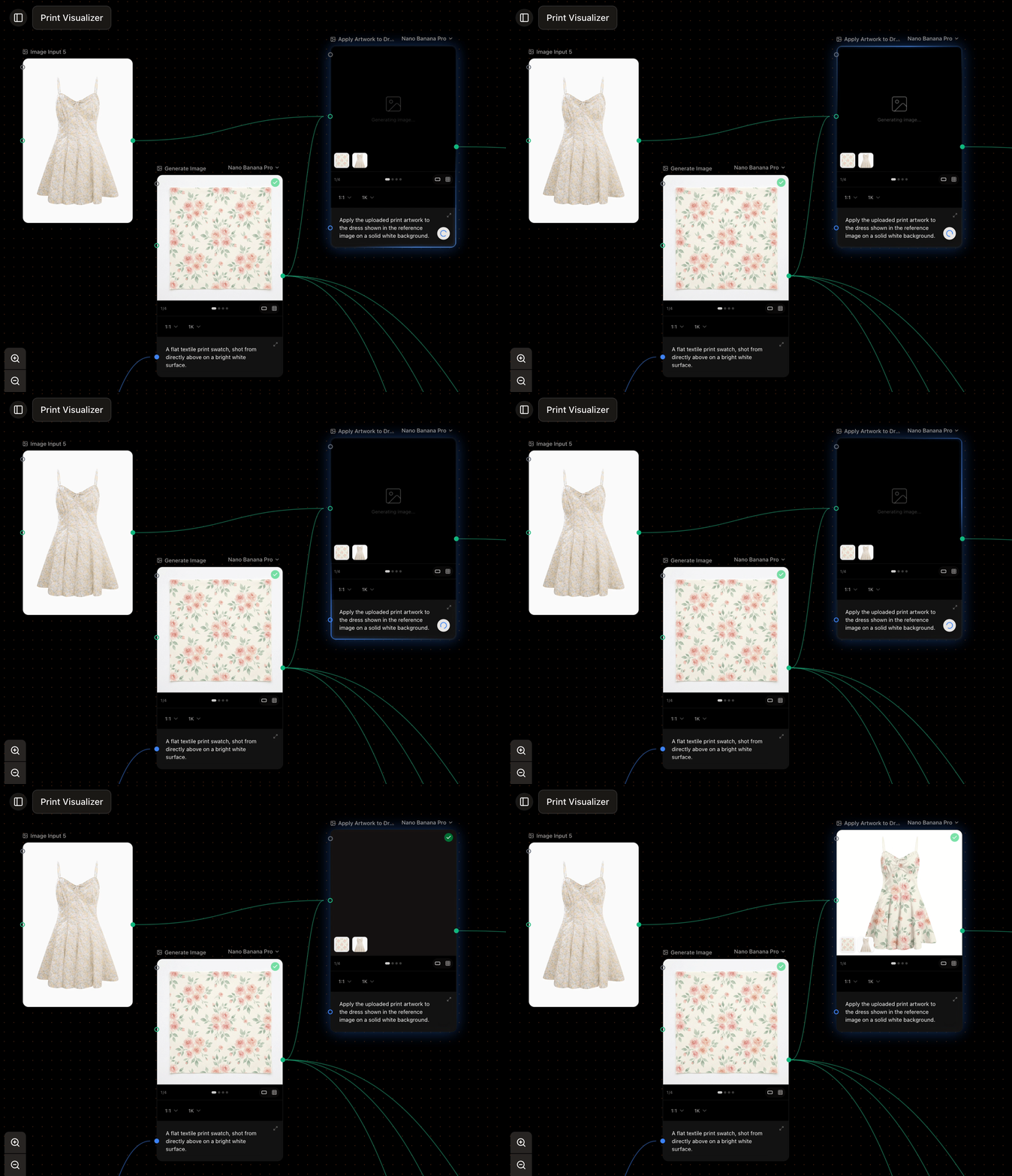
The Generate Image node turns a prompt—and any reference images you connect—into a new image, using the model you choose.
 ## What it takes
* **Prompt** (required) — what you want, in words. Connected [Text Inputs](/nodes/text-input) appear here as references.
* **Reference images** (optional) — connect [Image Inputs](/nodes/image-input) or other generations to guide style, subject, or composition. How many a model accepts varies—from none for text-only models to many for others. See [connections](/concepts/connections).
## Settings
* **Model** — the image model that runs. See [choosing a model](/models/overview).
* **Aspect ratio** — the shape of the result; the options depend on the model.
* **Number of results** — generate up to four at once from the same prompt.
* **Resolution** and **quality** — available on models that support them.
## On the result
A node's hover toolbar gives quick actions on a generated image, including **[annotate](/concepts/annotate-and-inpaint)** (mark it up or inpaint a region), **enhance prompt**, **remove background**, and **download**.
## At scale
Connect a multi-item source in [Each mode](/concepts/variations) to generate across a set, or use a [Combinator](/concepts/combinator) to produce every product-and-material combination.
## What it takes
* **Prompt** (required) — what you want, in words. Connected [Text Inputs](/nodes/text-input) appear here as references.
* **Reference images** (optional) — connect [Image Inputs](/nodes/image-input) or other generations to guide style, subject, or composition. How many a model accepts varies—from none for text-only models to many for others. See [connections](/concepts/connections).
## Settings
* **Model** — the image model that runs. See [choosing a model](/models/overview).
* **Aspect ratio** — the shape of the result; the options depend on the model.
* **Number of results** — generate up to four at once from the same prompt.
* **Resolution** and **quality** — available on models that support them.
## On the result
A node's hover toolbar gives quick actions on a generated image, including **[annotate](/concepts/annotate-and-inpaint)** (mark it up or inpaint a region), **enhance prompt**, **remove background**, and **download**.
## At scale
Connect a multi-item source in [Each mode](/concepts/variations) to generate across a set, or use a [Combinator](/concepts/combinator) to produce every product-and-material combination.