> ## Documentation Index
> Fetch the complete documentation index at: https://docs.sprello.ai/llms.txt
> Use this file to discover all available pages before exploring further.
# Generate Video
> Create video from a prompt and an optional source image.
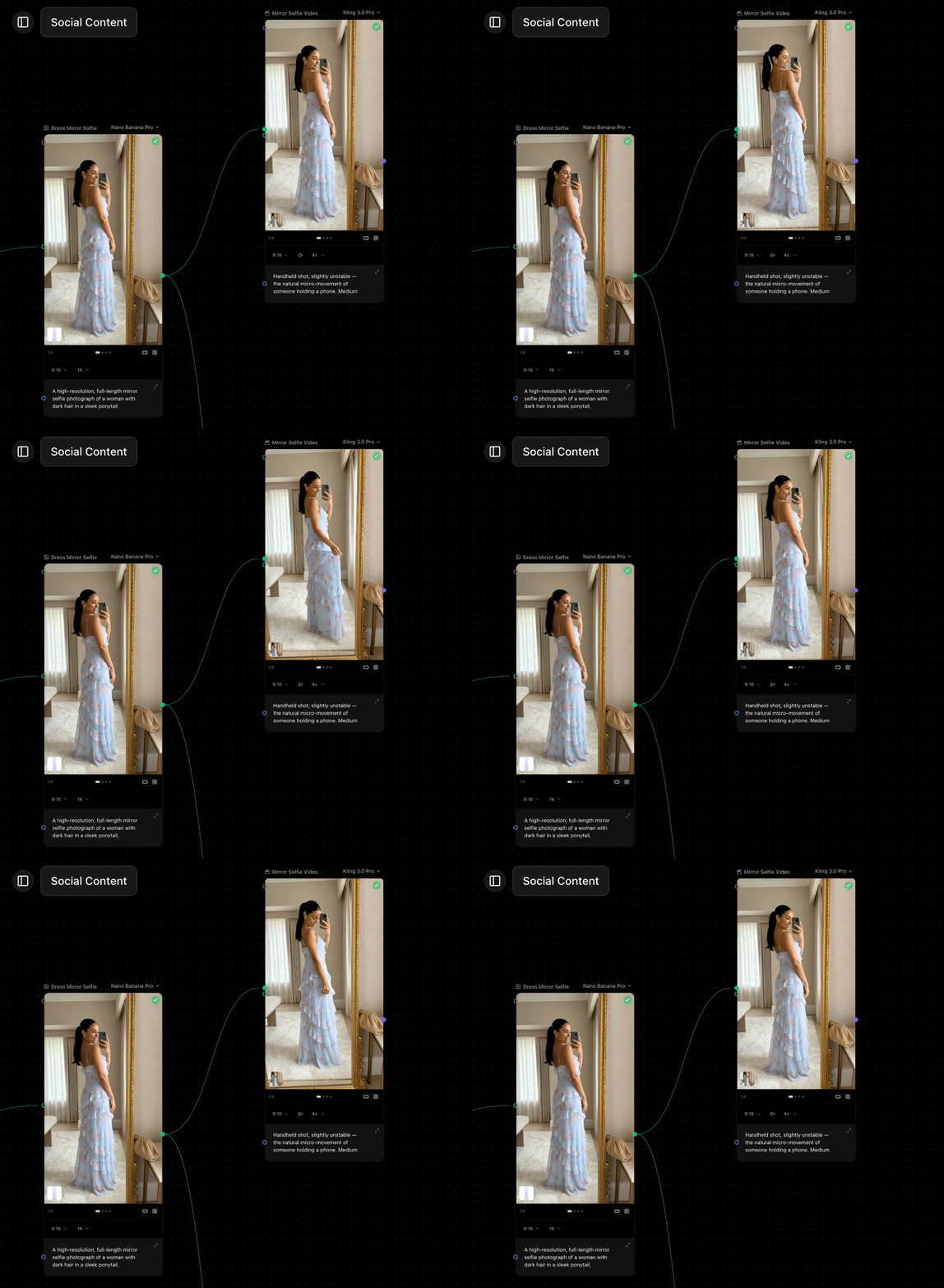
The Generate Video node turns a prompt—and an optional source image—into a short video clip.
 ## What it takes
* **Prompt** (required) — describe the motion, camera, and mood you want.
* **Source image** (optional) — connect an [Image Input](/nodes/image-input) or a generated image to use as the clip's starting frame. This is how you bring a still to life.
* **End frame** (optional) — some models let you set a final frame as well, and interpolate from the start frame to it. See [video model capabilities](/models/overview#video-models).
* **Reference clips** (optional) — reference-to-video models accept reference videos, not just images, to guide motion and camera.
## Settings
* **Model** — the video model that runs. See [choosing a model](/models/overview).
* **Duration** — clip length; the supported range depends on the model (often a few seconds).
* **Aspect ratio** and **resolution** — the shape and size of the clip, where the model supports them.
* **Audio** — some models can generate sound; toggle it on when available.
## At scale
Connect a multi-item source in [Each mode](/concepts/variations) to turn a set of stills into a set of clips in one run.
## What it takes
* **Prompt** (required) — describe the motion, camera, and mood you want.
* **Source image** (optional) — connect an [Image Input](/nodes/image-input) or a generated image to use as the clip's starting frame. This is how you bring a still to life.
* **End frame** (optional) — some models let you set a final frame as well, and interpolate from the start frame to it. See [video model capabilities](/models/overview#video-models).
* **Reference clips** (optional) — reference-to-video models accept reference videos, not just images, to guide motion and camera.
## Settings
* **Model** — the video model that runs. See [choosing a model](/models/overview).
* **Duration** — clip length; the supported range depends on the model (often a few seconds).
* **Aspect ratio** and **resolution** — the shape and size of the clip, where the model supports them.
* **Audio** — some models can generate sound; toggle it on when available.
## At scale
Connect a multi-item source in [Each mode](/concepts/variations) to turn a set of stills into a set of clips in one run.