> ## Documentation Index
> Fetch the complete documentation index at: https://docs.sprello.ai/llms.txt
> Use this file to discover all available pages before exploring further.
# Your asset library
> Every upload and generation, in one searchable place.
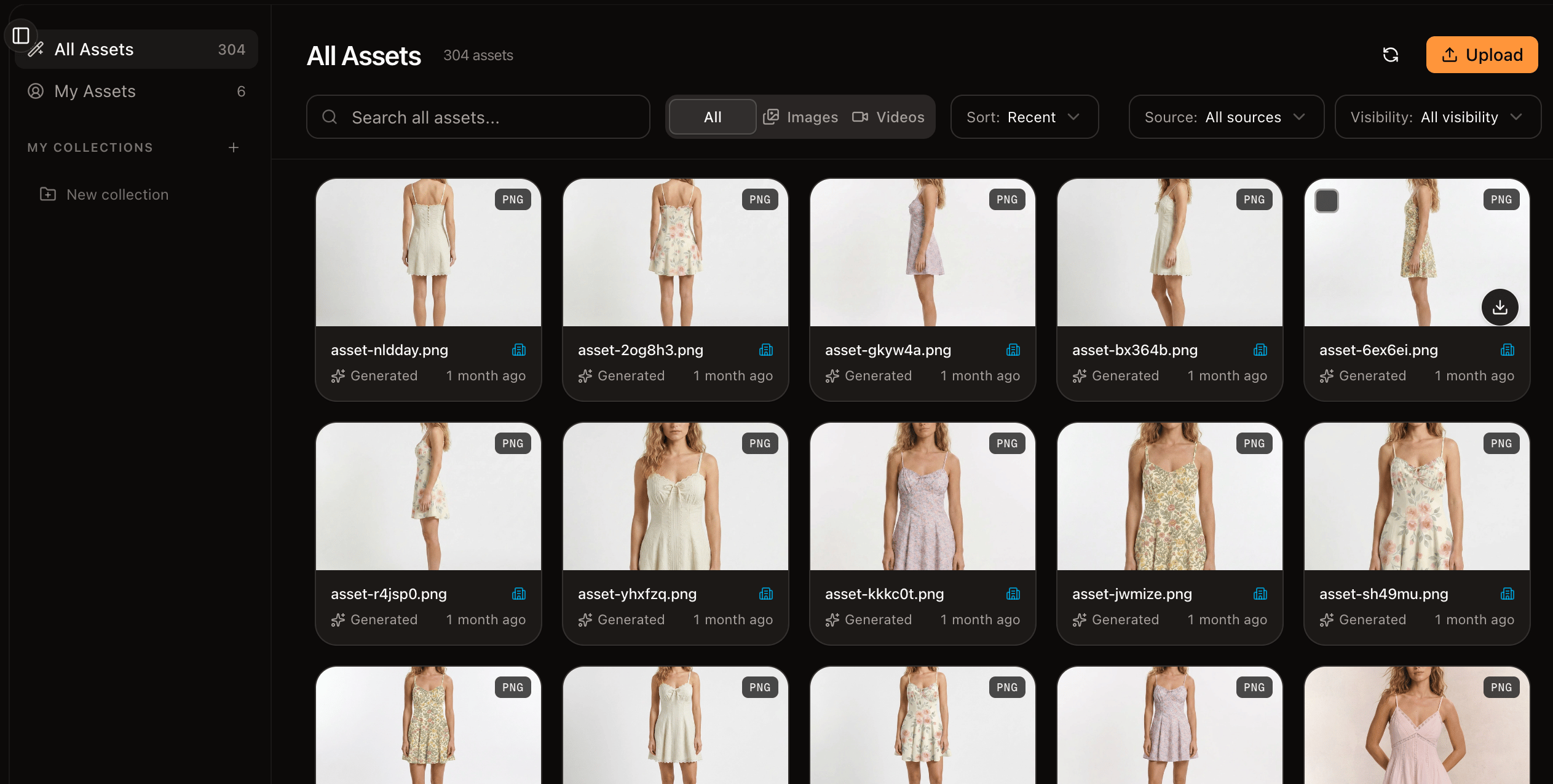
The asset library holds every image and video in your workspace—both the files you upload and everything you generate. It's where your work lives once it leaves the canvas.
 ## Find what you need
* **Views** — switch between **All**, **Mine**, **Generated**, **Uncollected**, or a specific [collection](/organize/collections).
* **Filter by type** — show all assets, just **Images**, or just **Video**.
* **Search** — search within the current collection or across the whole workspace.
* **Sort** — by most recent or by name.
## Add assets
* **Upload** images or video from your computer.
* **Generations save automatically.** Anything you create on the canvas appears in the library, marked as generated.
## Work with an asset
Open an asset to see its details, rename it, and add it to collections. Select several at once for bulk actions like deleting.
## Next
Group assets around products, seasons, and campaigns.
Bring library assets into a workflow as inputs.
## Find what you need
* **Views** — switch between **All**, **Mine**, **Generated**, **Uncollected**, or a specific [collection](/organize/collections).
* **Filter by type** — show all assets, just **Images**, or just **Video**.
* **Search** — search within the current collection or across the whole workspace.
* **Sort** — by most recent or by name.
## Add assets
* **Upload** images or video from your computer.
* **Generations save automatically.** Anything you create on the canvas appears in the library, marked as generated.
## Work with an asset
Open an asset to see its details, rename it, and add it to collections. Select several at once for bulk actions like deleting.
## Next
Group assets around products, seasons, and campaigns.
Bring library assets into a workflow as inputs.