> ## Documentation Index
> Fetch the complete documentation index at: https://docs.sprello.ai/llms.txt
> Use this file to discover all available pages before exploring further.
# Collections
> Group assets around products, seasons, and campaigns.
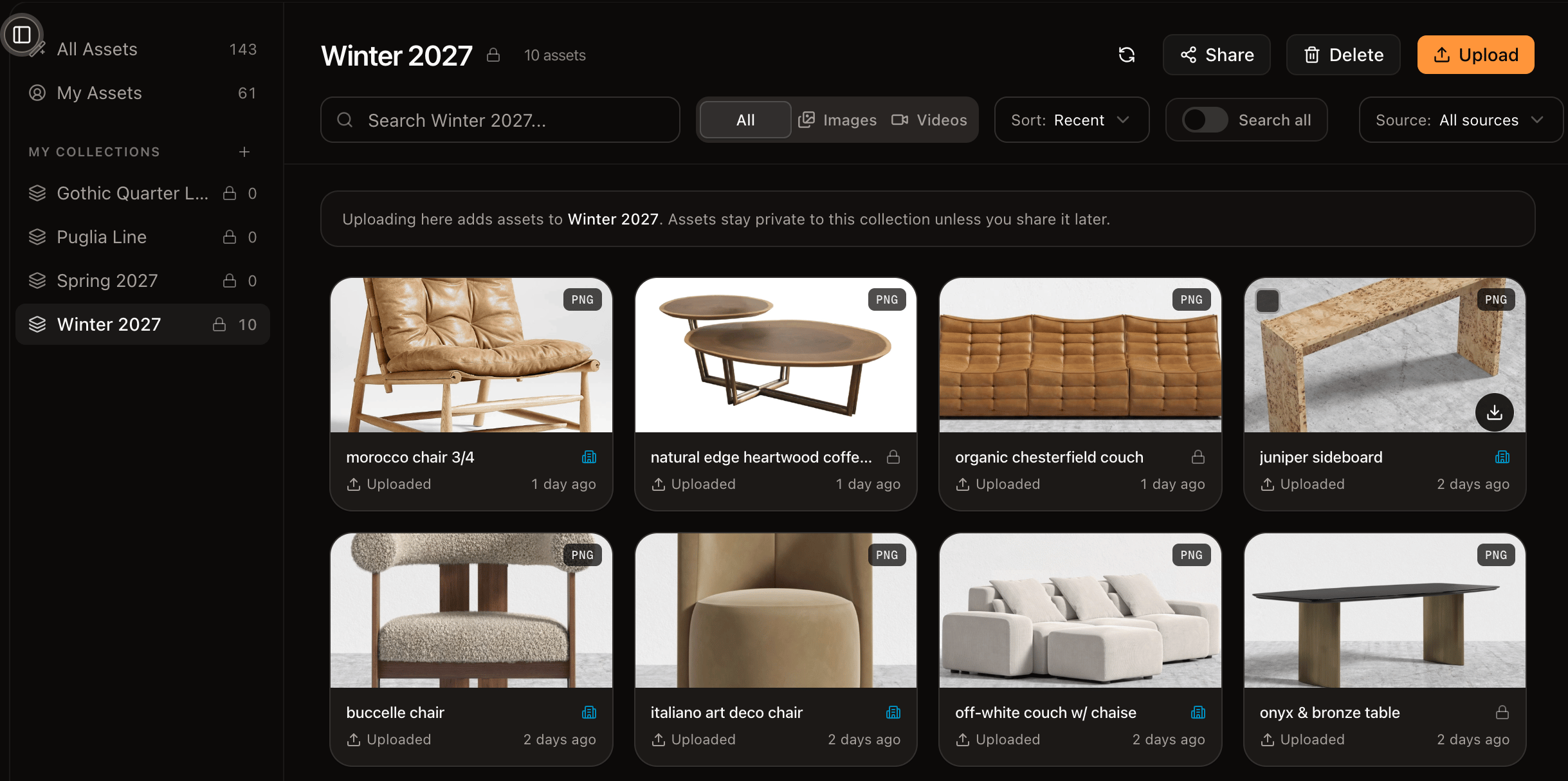
Collections are how you organize your work around the things that matter to your brand—a product, a season, a campaign, a client. They keep related assets together so the right material is easy to find and share.
 ## Collections aren't folders
An asset can belong to **zero, one, or many** collections at once. A single product render can live in "Spring 2026," "Sneakers," and a specific campaign at the same time. The question a collection answers isn't "where does this file live?" but "what is this part of?"—which matches how creative teams actually think about their material.
## Work with collections
* **Create** a collection and give it a name.
* **Add assets** from the [library](/organize/asset-library), or while you work on the canvas.
* **Rename** or **delete** a collection. Deleting a collection doesn't delete the assets inside it—they stay in your library.
## Share a collection
Sharing a collection gives its audience access to every asset inside it. It's the simplest way to hand a curated set—reference material, approved finals—to collaborators without exposing everything else. See [sharing and visibility](/organize/sharing).
## Next
Control who can see your collections and assets.
## Collections aren't folders
An asset can belong to **zero, one, or many** collections at once. A single product render can live in "Spring 2026," "Sneakers," and a specific campaign at the same time. The question a collection answers isn't "where does this file live?" but "what is this part of?"—which matches how creative teams actually think about their material.
## Work with collections
* **Create** a collection and give it a name.
* **Add assets** from the [library](/organize/asset-library), or while you work on the canvas.
* **Rename** or **delete** a collection. Deleting a collection doesn't delete the assets inside it—they stay in your library.
## Share a collection
Sharing a collection gives its audience access to every asset inside it. It's the simplest way to hand a curated set—reference material, approved finals—to collaborators without exposing everything else. See [sharing and visibility](/organize/sharing).
## Next
Control who can see your collections and assets.