> ## Documentation Index
> Fetch the complete documentation index at: https://docs.sprello.ai/llms.txt
> Use this file to discover all available pages before exploring further.
# Using assets on the canvas
> Bring library assets into a workflow as inputs.
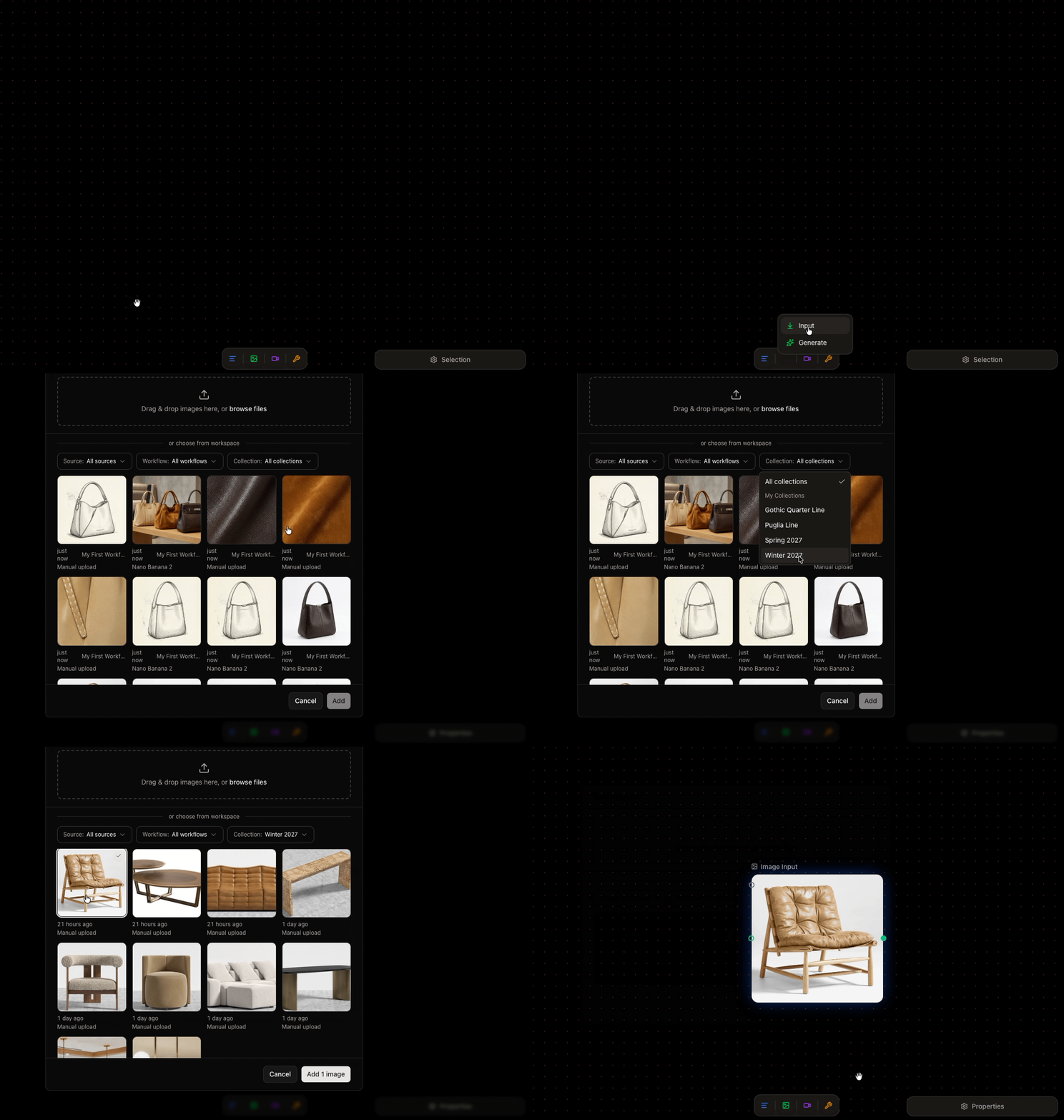
Your [asset library](/organize/asset-library) and the canvas work together. Anything in your library—an uploaded sketch, a material swatch, an approved product shot—can become an input in a workflow.
## Add a library asset to a workflow
* **From an input node**, open its asset picker and choose images from your library or a specific [collection](/organize/collections). Search and filter to find the right one.
* **Drag** an asset onto the canvas, or paste it directly.
 ## Sharing follows usage
Once an asset is used in a workflow, it's accessible to everyone that workflow is shared with—so collaborators can run it without hunting for inputs. See [sharing and visibility](/organize/sharing).
## Next
Run your workflow and review what it produces.
## Sharing follows usage
Once an asset is used in a workflow, it's accessible to everyone that workflow is shared with—so collaborators can run it without hunting for inputs. See [sharing and visibility](/organize/sharing).
## Next
Run your workflow and review what it produces.