> ## Documentation Index
> Fetch the complete documentation index at: https://docs.sprello.ai/llms.txt
> Use this file to discover all available pages before exploring further.
# Create your first visual
> Go from a prompt to a finished asset on the Sprello canvas.
This guide walks you through the core loop in Sprello: add a node, generate an image, review it, and save it to a collection. It takes about five minutes.
You need a Sprello account and a workspace. When you open a new workflow, you land on a blank canvas—the space where you build.
## Generate an image
Inside your workspace, create a new workflow. Sprello opens an empty canvas, ready for your first node.
 Right-click anywhere on the canvas to open the add menu, then pick a model under **Image models**. Or select a Generate Image node from the menu at the bottom of your canvas. A Generate Image node appears with a prompt field and a model selector.
 Click the prompt field and describe what you want. Be specific about the subject, setting, and look:
> A tan leather crossbody bag on a pale marble surface, soft morning daylight, editorial product photography
Short on words? Use **Enhance prompt** to expand a rough idea into a fuller description before you generate.
Pick an image model in the node's model selector. Each model has its own strengths—some excel at product detail, others at styling and mood. The default is a good starting point; see [choosing a model](/models/overview) when you want to compare.
Select **Run**. The node shows its progress while the model works.
Click the prompt field and describe what you want. Be specific about the subject, setting, and look:
> A tan leather crossbody bag on a pale marble surface, soft morning daylight, editorial product photography
Short on words? Use **Enhance prompt** to expand a rough idea into a fuller description before you generate.
Pick an image model in the node's model selector. Each model has its own strengths—some excel at product detail, others at styling and mood. The default is a good starting point; see [choosing a model](/models/overview) when you want to compare.
Select **Run**. The node shows its progress while the model works.
 ## Review and organize
Your image appears on the node. Not quite right? Adjust the prompt or model and run again.
Every generation is saved to your [asset library](/organize/asset-library) automatically. To keep it with related work, add it to a [collection](/organize/collections)—for example, a product, a season, or a campaign. An asset can belong to as many collections as you need.
## Review and organize
Your image appears on the node. Not quite right? Adjust the prompt or model and run again.
Every generation is saved to your [asset library](/organize/asset-library) automatically. To keep it with related work, add it to a [collection](/organize/collections)—for example, a product, a season, or a campaign. An asset can belong to as many collections as you need.
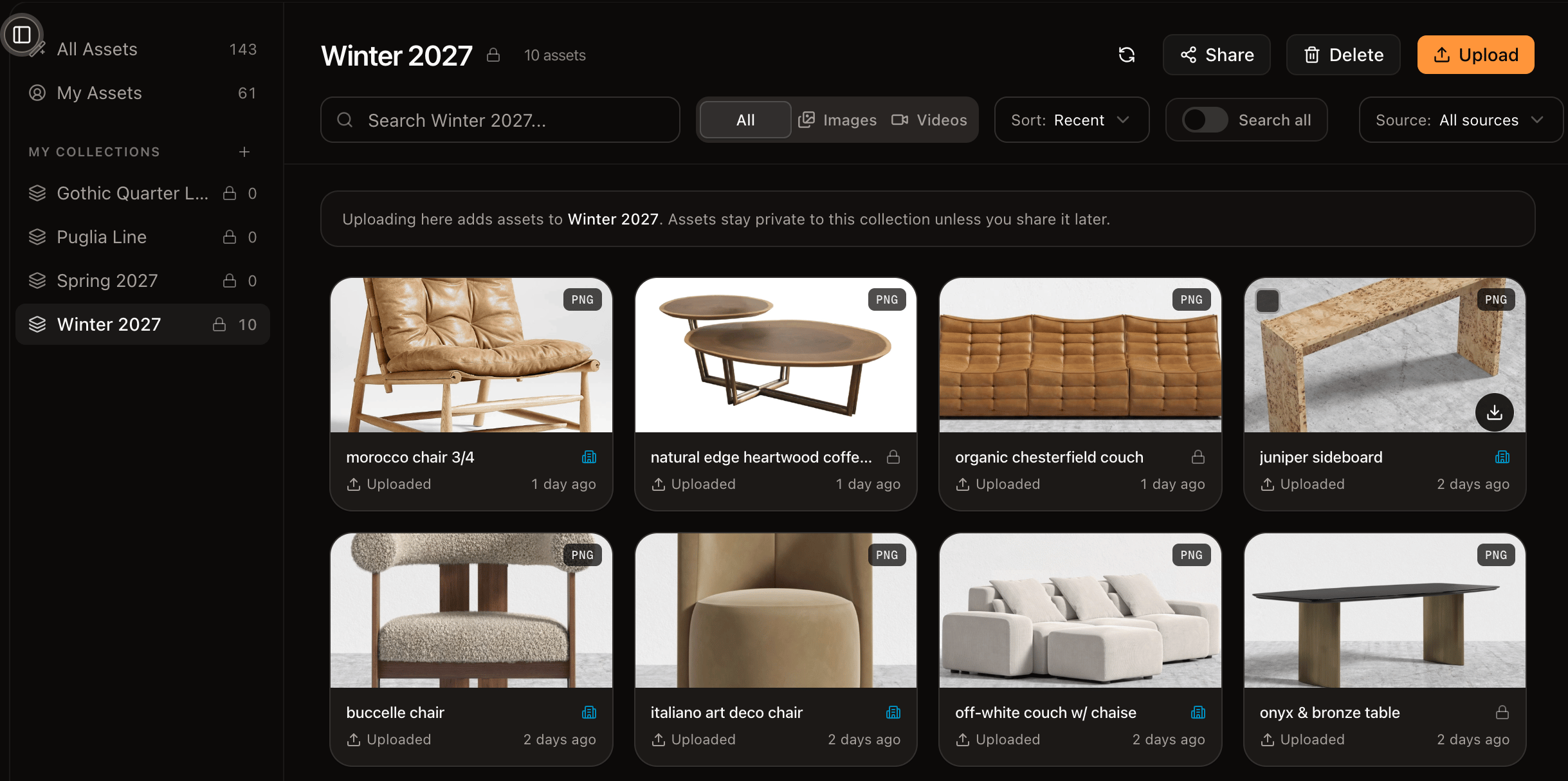 You generated your first image and saved it to a collection. That is the loop you will repeat—now you can scale it.
## Next steps
Feed a sketch or product photo into a generation to guide the result.
Produce many results at once—one per material, color, or prompt.
Pair every product with every material using the Combinator.
Group your assets around the products they belong to.
You generated your first image and saved it to a collection. That is the loop you will repeat—now you can scale it.
## Next steps
Feed a sketch or product photo into a generation to guide the result.
Produce many results at once—one per material, color, or prompt.
Pair every product with every material using the Combinator.
Group your assets around the products they belong to.