

Anatomy of a node
Most generator nodes share the same parts:- Prompt field — what you want, in words. Connected inputs appear here as labeled references like
@Sketch. - Model selector — which AI model runs. See choosing a model.
- Generation settings — options such as aspect ratio, number of results, and resolution, depending on the model.
- Run button — generate from this node.
- Output area — your results. When a node produces more than one, a navigation bar lets you step through them.
- Status — whether the node is idle, running, done, or needs attention.
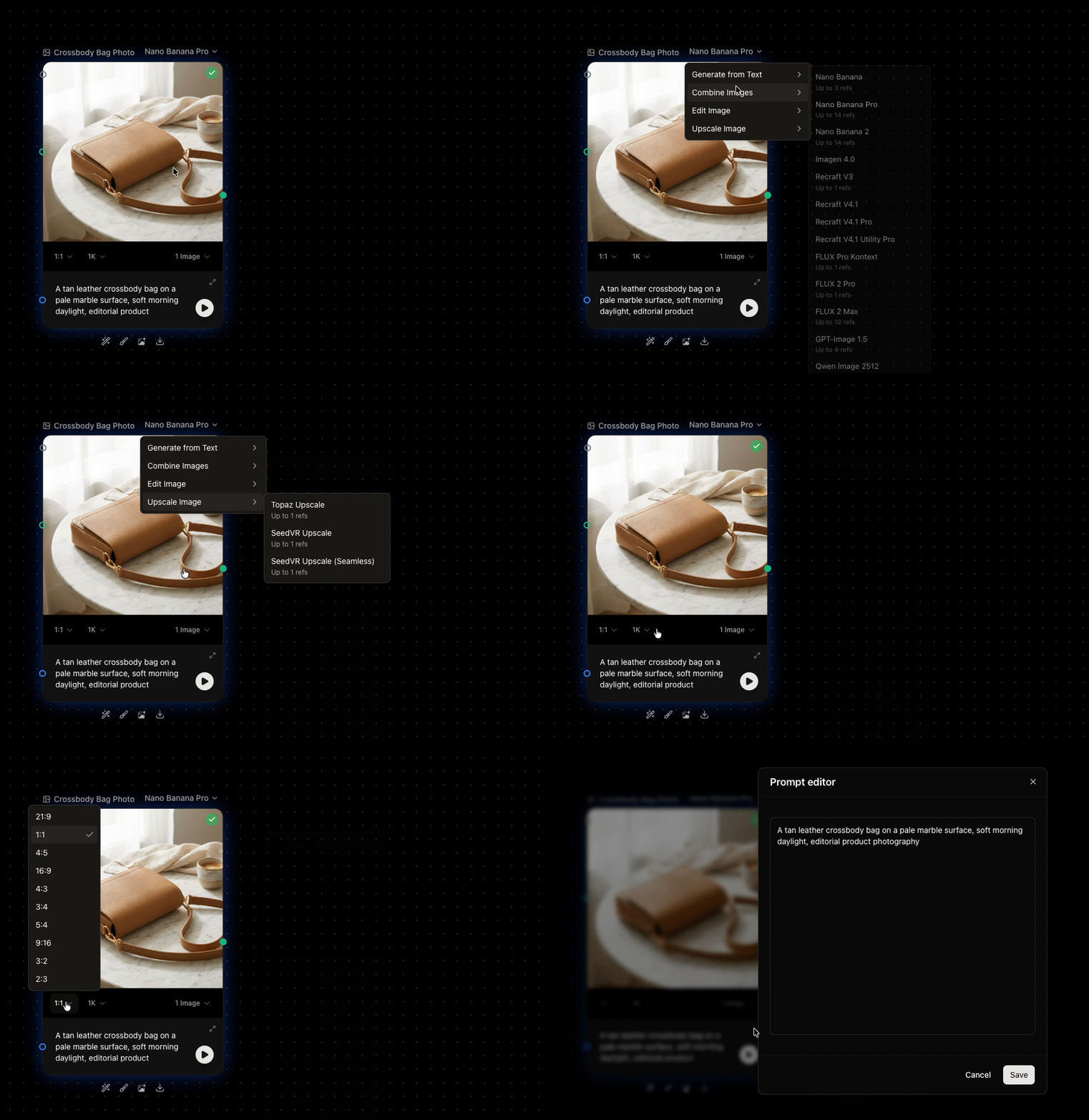
A generator node: prompt, model, settings, and output
Properties panel
When you select a node, a Properties panel opens at the bottom-right of the canvas. It exposes extra options and toggles—including settings specific to a generation model—that aren’t shown on the node itself. It’s also where you disable (freeze) a node.Items and iteration
An input node can hold one item or many (several images, several lines of text). When it holds many, you decide whether each item generates its own result or they all combine into one. That choice is what lets you produce variations at scale—see variations.Disabling a node
You can disable any node to freeze its output, from its Properties panel. A disabled node is skipped on the next run—no model call, no credits—but its last result stays available to everything downstream. Re-enable it when you want it to generate again.Next
Connections and data types
How nodes pass data to each other.
Variations at scale
One result per item, or all items combined.